
Manage disk space on huge drives & network volumes easily.
Find biggest folders and files taking up your disk space.
Dig up some interesting facts on your file system.
Get this amazing disk utility and get a clear picture of the disk space usage on your drives.
:
You get 7 useful lists or reports of folders and files that you don't get in Windows Explorer. See what these reports are, later on this page.
By using ShowSize reports, you can find out what folders, file types and files are consuming the most disk space. You can also dig up some interesting things about your file system as described later.
Print contents of folders easily. You might even get a printout containing all the folders, subfolders and files within them in a single list which is not possible in Windows Explorer.
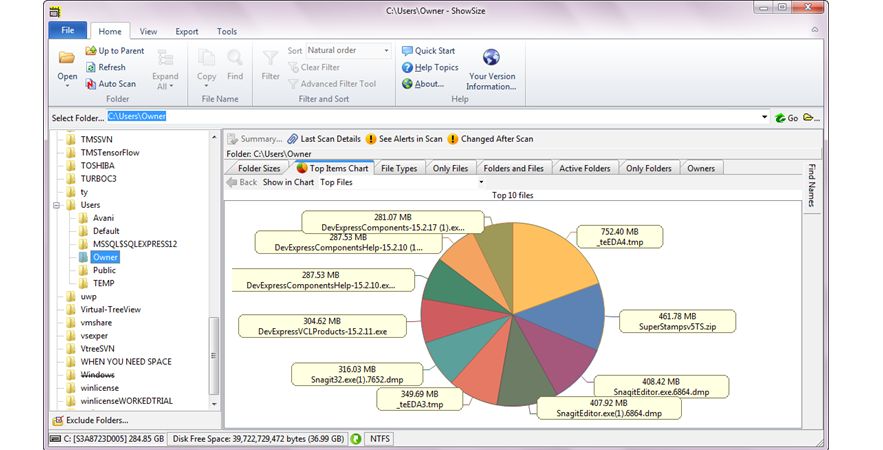
You also get to see a Pie Chart of upto 16 largest items on any report. See pictures later on this page.
Going deep down within all the subfolders is a disk intensive operation. Any program that does that should have the ability to cancel out of such a scan. ShowSize always allows a cancel.
Some reports like Only Files are quite innovative and unique in ShowSize. You won't find them in other software. Continue reading to know more.
Dig up some interesting facts on your file system and its disk space:
For example, do you want to know what is the largest file on a paticular drive? You can do that with Only Files report by sorting it on the file size. You can't do that in Windows Explorer because it doesn't have any report like that where all the files in a disk are listed in a straight, sortable list
Other examples:
How to list all the folders by size, at once? Use Folder Sizes Report and find out what are the biggest folders taking up the most disk space.
How to see space taken up by various file types, for example, all your JPG photo files? Use File Types Report.
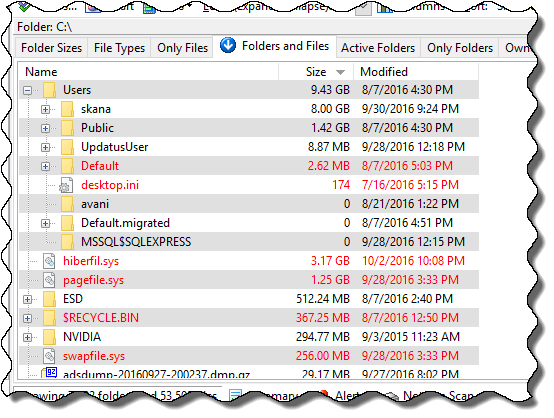
How to see folders, subfolders and files together in a single hierarchial list with their sizes and numbers?Use Folders and Files Report.
How to print complete contents of a folder, including all the subfolders and files at all levels? Use Folders and Files report.
How to see the latest created file in a disk? Use Only Files Report.
Many more, similar queries can be answered by using the various reports. More examples follow in "See some more examples of using ShowSize," later on this page.
Get 7 useful reports on folders and files that you don't get in Windows Explorer:
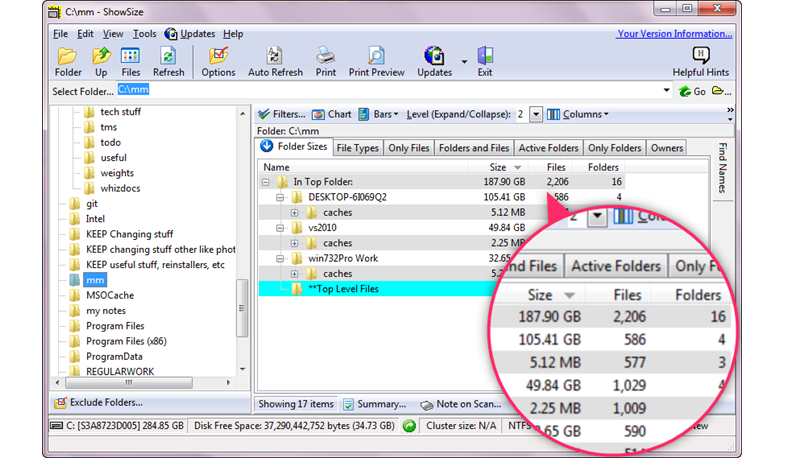
Folder Sizes Report--Lists folders by decreasing sizes in any location. Also includes total number of files and folders within each folder. You can examine this report in further detail by going deeper into it to display disk space related data in a hierarchical tree list.
Folders and Files Report--Best for taking printout of folder contents. Lists all the folders and files together in a single hierarchial list with their sizes and numbers.
File Types Report--Lists file types with their total occupied sizes
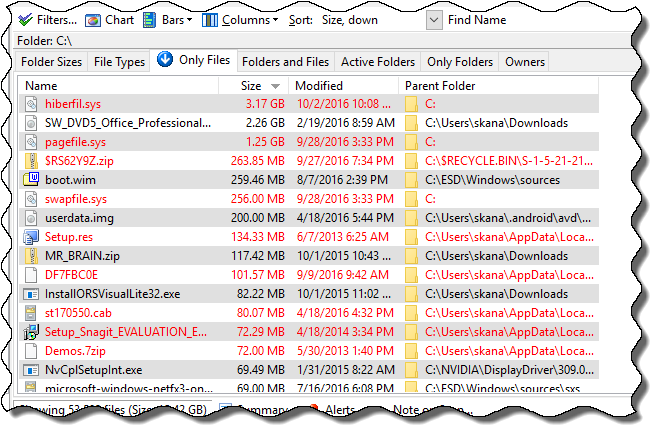
Only Files Report--Lists all the files contained in the target disk location in a single sortable list. So, for example, you can sort on size and find the largest file on a disk even if it is deep inside, many levels down in the folder hierarchy.
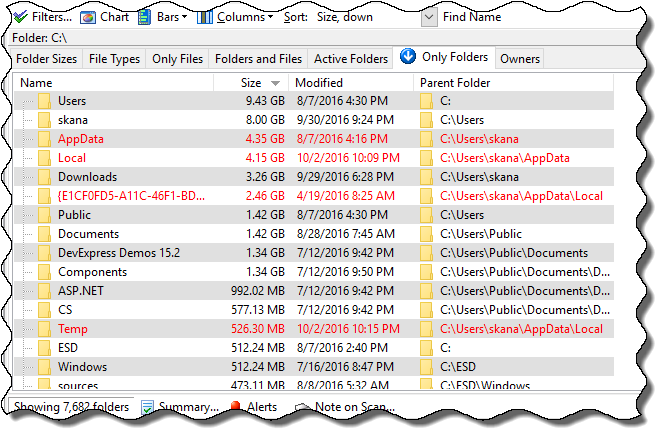
Only Folders Report--Lists all the folders contained in the target disk location in a single sortable list. So, for example, you can sort on size and find the largest folder on a disk even if it is deep inside, many levels down in the folder hierarchy.
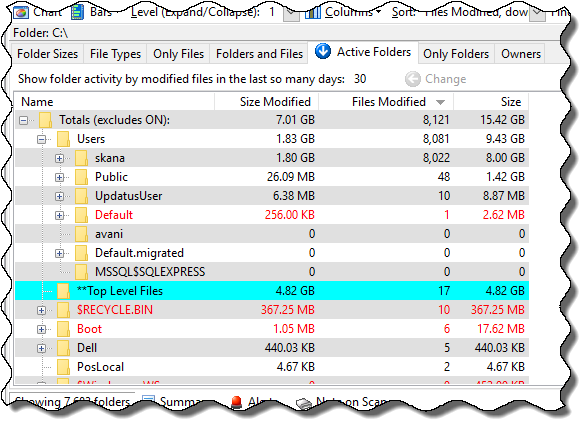
Active Folders Report--Makes it possible to identify folders where files have been modified most in tiven number of days.
Owners Report--Lists all file owners with their total occupied sizes (only in ShowSize Pro Edition)
Unused Files Report is only available on Windows XP because Windows Vista and later systems do not support this feature to keep track of file usage.
More details on how the reports help are later on this page.
Version 5.1.8
Download Size: 10.4 MB (approx)
Run the downloaded EXE file to install.
Great price, starts at $24.95
Includes 1 year of FREE updates
Please read an interesting Blog article contributed by one of our advanced users:
"I searched on Google. Yours was the third one I downloaded and tried but
the only one which really does what I was looking for. It's amazing that
something so simple in concept was so hard to find. I am very pleased
with Showsize."
"Your program is saving me a ton of time and the ownership information is invaluable to me! The latest version with that optional "owner" and "modified" columns are exactly what we needed! I'm also very glad that it works with Windows 7 64-bit."
"It's also very cool to work with a program that when you hit cancel on a long running operation with over 300,000 entries, that it actually works! The program is great!"
ShowSize is also being used to monitor space and manage files on web servers, provided it is run locally on the server machine. It is mentioned as a File Management Tool on the following resource page listing various web tools:
A Pie Chart can be seen on most of the reports:
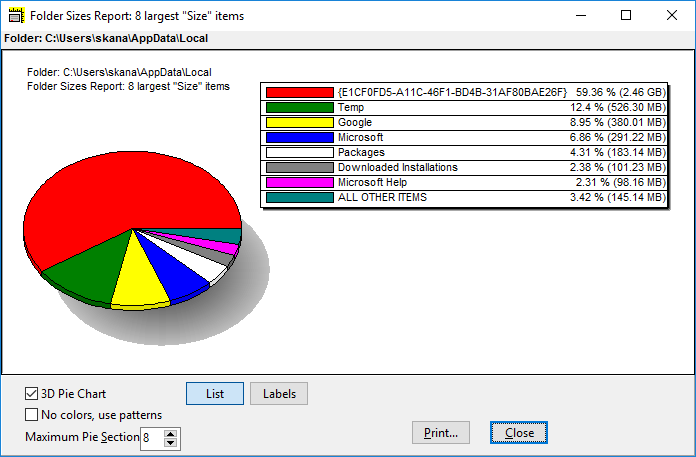
You can see a Chart of upto 16 largest items on any report. For example, the following picture shows 8 largest folders in size in a chart form. You can change this to view the largest folders in terms of number of files or number of folders too.
The Pie Chart gives useful controls to view the chart in 3d, 2d, the maximum pie sections, with labels instead of Legend or List, and so on.
For example, the following picture shows a chart with labels by the side of the Pie slices.
The End Result--you are in a better position to identify and remove unwanted folders and files to get more disk space for the new and useful stuff:
ShowSize has satisfied even the most advanced users--network administrators
Network admins can take advantage of this information to monitor the disk space consumed by various users in their organization and can produce helpful reports that avoid system bloat and inform these users about the details of their disk space usage. Please read a blog article contributed by one of our advanced users.
ShowSize is heavy-duty software that can scan terabytes of disk space and can show lists containing millions of items and is being used to monitor server disk space in large organizations. This is possible by an innovative virtual listing technology that it uses. See Why choose ShowSize over other such software?.
Some more comments from our customers
"Your program is saving me a ton of time and the ownership information is invaluable to me!"
"ShowSize is a real top-notch, well-written, and extremely useable utility."
"Excellent program ... absolutely every option one could possibly think of!"
"Great software. It helps me manage my users' disk space on the network."
"You have made my life so much easier as I now can produce the reports I need for users at our company."
"Now, as a LAN Admin, I can monitor the size of constantly changing network space."
A disk F: is filling up fast. I want to quickly find the big-size folders and see if I can delete some. I can do that with "Folder Sizes report." Please see the screenshot and the flash demo showing this report, later on this page.
I have a big folder "F:\Photos and Travel docs" containing lots of JPG photographs in many subfolders and also some documents and zip files. I quickly want to see how much space the JPG files are taking so that I can put them on a CD. I can do that with "File Types report." Please see the screenshot later on this page.
I have a mixture of big and small files on a usb hard disk in many subfolders and just want to delete some large files to make space. I can do that with "Only Files report." Please see the screenshot later on this page.
List of Reports:
ShowSize scans to full depth within the target location and collects this useful information for you to give these 7 useful reports. They contain all kinds of views on the contained subfolders and files at all the levels.
1.
Folder Sizes Report:
List folders by decreasing sizes in any location
Just select a disk or folder location and see a complete tree of folders showing their total occupied size and the total number of files and folders in these folders. Click on the picture on the right to see complete description along with the picture.
Why choose ShowSize over other such software? Scans for folder sizes take time. Any software that performs such scans has to be cancelable. Read more about the superior design of ShowSize software in Why use ShowSize?
Click on the following picture to read the complete details on how this report is used.
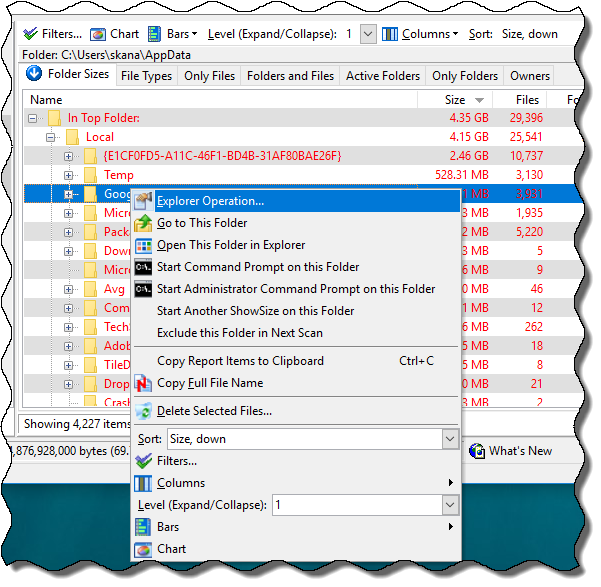
In this example, I scanned a folder called Y:\Delphi2007 with ShowSize. The total size of the folder is 641.49 MB. The report is sorted on the Size column. The largest folder is Help with the size 325.48 MB. Suppose I decide that I don't want this Help folder and remove it, I get that much more free space on this disk. For removing, I will need to right-click to see a special menu. Or, I can even open the selected item in explorer by the right-click menu.
Printout
I can expand or collapse the report by the Level pull down. I can even take a printout of any of the reports by the File menu.
Selecting folders to fit a certain size
If I select many folders in this list by Ctrl-Click, a popup shows me the added up size of these folders. This can be useful, for example, to find which folders will fit on a CD.
Number of files and folders
I can also see the total number of files and folders in each folder.
Advanced reporting
The "Size on Disk" column shows the actual size of the folders that accounts for the wasted space in partial clusters. This is made possible by the cluster size calculation that you can see at the bottom.
Filters
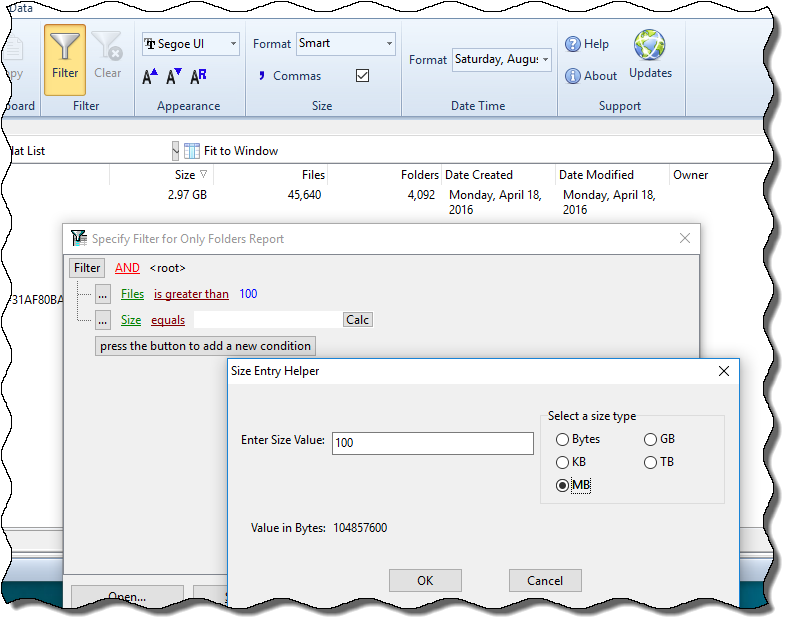
Above the report, you can see some buttons like "Filters..." They allow me to perform special operations based on the report. For example, I can filter and see only folders above and below certain sizes.
Pie Chart
I can click on the button next to Filters that shows a pie chart on the currently sorted column.
Customize the columns by drag and drop
ShowSize has advanced features to customize the columns. For example, you can click on the Columns button and select what columns you want displayed. You can even drag them around to change their order.
Other reports on tabbed pages
You can also see other reports available on their own tabbed pages. When you click on such a tab to see another report, the report is simply filled. There is no need to rescan the disk because ShowSize remembers all the data required for all reports.
Pie Chart:
on a sorted column of any report
For example, if the above folder sizes report is sorted on Size, it shows a pie chart of folder sizes. If it is sorted on number of files, it shows pie chart of number of files. Very useful!
Click on the following picture to read the complete details on how this feature is used.
ShowSize can show a pie chart of many reports. For example, this is a pie chart of the Folder Sizes report that you already saw.
In order to see the pie chart, you must have sorted the report on a column on which the pie chart can be shown. For example, here we had sorted it on folder sizes column. Once you do that, clicking on the Pie Chart toolbar button produces this pie chart.
2.
Folders and Files Report, best for taking printout of folder contents:
List all the folders and files together in a single hierarchial list with their sizes and numbers.
Unlike Windows Explorer, this shows all the folders and files in a single hierarchial list.
Click on the following picture to read the complete details on how this report is used.
Use this report and get an Explorer like view but with a difference. It is more like the left pane of Windows Explorer but the difference is that it lists the files too. So if you ever need to look at or print the folders and the files in one screen, this is the way to go. It also lists folder sizes but doesn't have all the features of Folder Sizes report. It can be useful when you want to quickly drill down a folder to see various sizes of files and folders.
Columns available: Folder/File Name, Size, Modified Date
For example, this is the Folders and Files report for a location where Nero software is installed. It shows all the folders and files in a hierarchical list. I have used Natural order for sorting here.
Please click to enlarge
3.
File Types Report:
A list of file types with their sizes
For example, this report makes it easy to see how much space all those photo files (*.JPG) are taking up in a folder, including the subfolders.
Click on the following picture to read the complete details on how this report is used.
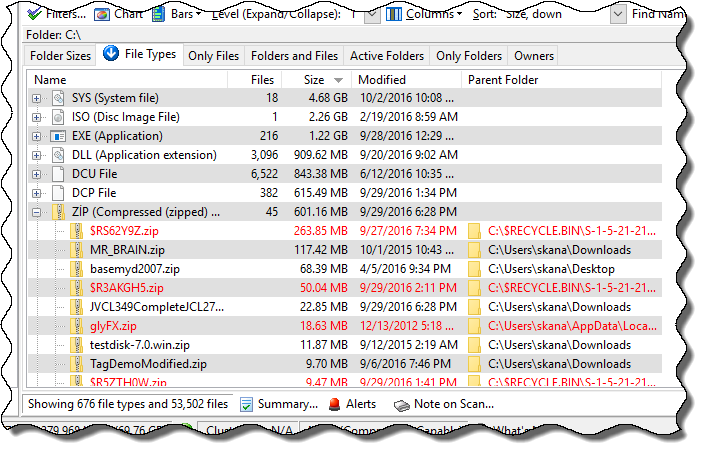
Use this report and find out how much space is occupied by the files of a certain type (having a certain file extension). You can also see a complete list of files of a particular type by simply clicking on the + button next to a file type item.
For example, this report makes it easy to see how much space all those photo files (*.JPG) are taking up in a folder, including the subfolders.
Columns available: Type/File Name, Number of Files, Modified Date, Parent Folder, Wasted Space (in partial clusters), Size on Disk (includes wasted space).
For example, in the picture I can see various file types present in the Eudora folder, at a glance, irrespective of their exact location within subfolders. I have expanded the GIF files to see the actual file names present and in which parent folder (subfolder of Eudora). I can also see that lot of TMP files exist which I can delete to free the space occupied by them.
4.
Unused Files Report (Windows XP only):
A list of files unused in so many days
This reports is useful on Windows XP where last used date is usually maintained by Windows file system.
But it is now
discontinued on Windows Vista or later
“Unused Files” feature for NTFS is not really available on Windows Vista or later systems
I will attempt to explain why we had to discontinue the "Unused files report" on Windows Vista or later and why I advise not to use it even on earlier Windows systems now.
On Vista or Windows 7, by default the “last access date” of the files are not updated on NTFS file systems. Microsoft did this to improve Vista/7 performance on NTFS systems.
This means that the above information is useless for all the files on NTFS volumes. There is a registry tweak possible so that Vista/7 starts updating the “last access date” of files. But even then the information won’t be useful for quite some time. For example, if you switch on this feature now you will have to wait for at least 30 days of use to get a report that shows files not used in last 30 days. Hence, it’s not a good solution as there is no way for ShowSize to determine when the tweak was made. In other words, one can never rely on Unused column or the Unused Files report. Besides this tweak might run into performance issues on Vista/7.
Corporate/LAN users, beware: Moreover, if many Vista/7 systems are using files on a shared NTFS volume, some will update the last access date and some won’t depending on whether they were fixed with the registry tweak. So on a shared volume you can never be sure if the Unused Files report is useful at all.
THE HARD DECISION THAT WE MADE: Hence, it’s not possible to find a decent solution to this problem. We can at most give warning messages on Vista/7 for NTFS volumes. But we can never be sure on shared volumes. Hence, in the newer ShowSize 5, we have entirely dropped this Unused Files report and the Used column in all the reports on Windows Vista/7.
(Not available on Windows Vista/7)
Use this report and see a list of files not used in last so many days. To change the number of days to look for, click on the days box and type a new value. Then, click on the button Change next to it.
Columns available: File Name, Size, Not Used Days, Used Date, Parent Folder, Modified Date
The partial header on column "Not Use.." is actually "Not Used Days." For example, in this report I can see that I have not used the help file vspeller.hlp at all in last 548 days. In fact, that is how discovered this help file.
Caution! The Not Used Days column is based on the Last Access Date of files. It is very important to understand the concept of Used Date before you go and delete some files. You must use your own judgement in using this information, especially when making a decision to delete some files or to perform other critical operations based on the report. In particular, do not delete any files from Windows or other system folders.
5.
Only Files Report
A single list of all the files contained in the target disk location
This is a real innovation. For example, this is the only way to find the largest file in a location no matter how deep down in subfolders it exists. Just see this report and sort on the Size column.
Click on the following picture to read the complete details on how this report is used.
Lists all the files, even those in subfolders. This gives you new ways to explore your file system. For example, you can sort on file sizes and find the largest files contained on a drive or a folder. Or, you can sort on date and see the oldest files. This is a unique report unlikely to be found in any other product. Why? Because it can easily run into millions of entries in the list that would choke ordinary software. But the virtual listing technology in ShowSize can handle it very well.
For example, I have sorted this Only Files report on file sizes, descending, and I can see that the largest file in this folder is dapoli.avi. There is no way I could have found that out with Windows Explorer.
This all-encompassing view also gives you interesting possibilities for file operations, such as, zipping up only older files (older than a certain date) on your hard disk. What is more, ShowSize is able to print these huge reports with features to restart printing from a particular page.
We are not saying ShowSize is a replacement for Windows Explorer. Windows Explorer is still useful as a File Manager. But you can consider ShowSize Only Files feature as an additional disk utility that can show you some reports that Windows Explorer does not handle. Here, ShowSize scans and lists all the children and grandchildren of a folder. This is unlike Windows Explorer that lists only the top level children of a folder.
6.
Only Folders Report
A single list of all the folders contained in the target disk location
Similar to Only Files report but for folders. Think about the situations where this can be useful. Take a clue from the description of Only Files above.
Click on the following picture to read the complete details on how this report is used.
This is different from other Folder reports in ShowSize because the folders are not shown in a hierarchical manner. Rather, they all appear in a straight list, quite like the Only Files Report. This gives you new ways to explore your file system. For example, you can sort on folder sizes and find the largest folders contained on a drive or a folder. It doesn't matter at which level it exists. It always appears at the top on a report reverse sorted on folder sizes. Or, you can sort on dates and see the oldest folders. Similarly, you can find all the folders with the same name as in the following example screenshot
For example, I have sorted this Only Folders report on names and I can see all the same named folders at a glance irrespective of how deep they are located. This is different from the Folder Sizes or Folders and Files report where such a sorting is not possible due to hierarchical display.
7.
Active Folders Report
Makes it possible to identify folders where files have been modified most
This shows the active folders by the size or number of files modified in the last so many days. A nice report for network admins.
Click on the following picture to read the complete details on how this report is used.
This shows the active folders by the size or number of files modified in the last so many days. A nice report for network admins.
Use this report and see active folders by the size or number of files modified in the last so many days. Hence, you can determine most active folders based on various criteria that you want to use. See the example usage below. To change the number of days to look for, click on the days box and type a new value. Then, click on the button Change next to it.
For example, in this report I can see that the folder Search is most active in terms of files modified or changed.
8
th report, Owners Report, is available only in ShowSize Pro Edition
List of owners
This is a recently added feature--another innovation. Network admins are already saving tons of time with this. Please see the Testimonials link at the top.
Click on the following picture to read the complete details on how this report is used.
Available only in minimum 5-user-license of ShowSize
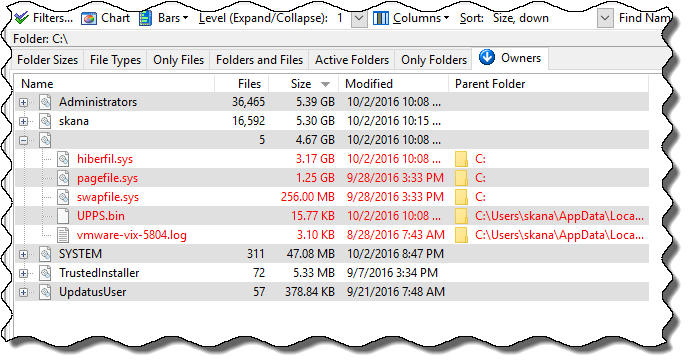
Use this report and find out how much space is occupied by the files belonging to an owner. You can also see a complete list of files of a particular owner by simply clicking on the + button next to an owner item.
In this example, I can see files of the owner SYSTEM.
Saving and Sharing of Reports (available only in ShowSize Pro Edition)
Save a report on one computer and view it on even remote unconnected computers
This is another new feature and tops our innovations list. You can save a ShowSize report by using the menu Tools--Save Report. Other users can view such a report by opening it with the menu Tools--View Report. A report can be viewed this way even on a system where that drive location is not present.
Click on the following picture to read the complete details on how this feature is used.
Available only in minimum 5-user-license of ShowSize
You can save a ShowSize report by using the menu Tools--Save Report. Other users can view such a report by opening it with the menu Tools--View Report. A report can be viewed this way even on a system where that drive location is not present.
The picture shows a report being viewed. This looks quite the same as a live report except that the left pane is not there. Also, you CAN NOT do any LIVE operations on the files or folders of a report being viewed. For example, you can not open those folders in explorer, start a command prompt on them, delete folders and files, etc. Other than that, all the report viewing features, printing options and filters work on the saved report.
Many more power features
Powerful command line features
Export data to CSV format
Skip symbolic links
Multiple copies running on different locations
Customize the report columns by drag and drop
See pie chart on many of the reports
See wasted space in partial clusters
Install a ShowSize menu in Explorer
Nice printing features to print the lists
UNC path support
Filters and filter testing
Coloring of system and hidden items
Auto refresh to monitor a location
Easy to use: In spite of all the powerful features, ShowSize is easy to use.
We do our own innovation
We don't follow other software. That's why you will find unique features in ShowSize that you won't find elsewhere. ShowSize is an innovative product in a class of its own. It uses a virtual listing technology that can process and display terabytes of disk space and millions of files. Ordinary software will break on such large data. Scanning a big disk full of millions of files may take a lot of time, especially on network drives. In ShowSize all such scan operations are cancelable so that you avoid irritating waits or hangs which are quite common with many disk utilities.